Taking a screenshot on Windows is simple—but most people only know one method and miss out on faster, smarter options.
Let’s break down the best ways to capture your screen like a pro
1. Use the Print Screen (PrtScn) Key
This is the most basic method.
How it works:
- Press PrtScn on your keyboard
What happens:
- Captures the entire screen
- Copies it to your clipboard
Then paste it anywhere using Ctrl + V (e.g., Word, WhatsApp, Paint)
2. Windows + Print Screen (Auto Save)
If you don’t want to paste manually, this is your go-to.
Shortcut:
- Press Windows + PrtScn
What happens:
- Screenshot is automatically saved
Location: Pictures → Screenshots folder
3. Snipping Tool (Built-in App)
For more control, use the Snipping Tool.
Steps:
- Search “Snipping Tool” in Windows
- Click New
- Select the area you want
Features:
- Free-form snip
- Window snip
- Full-screen snip
- Delay timer
Perfect for clean, precise screenshots
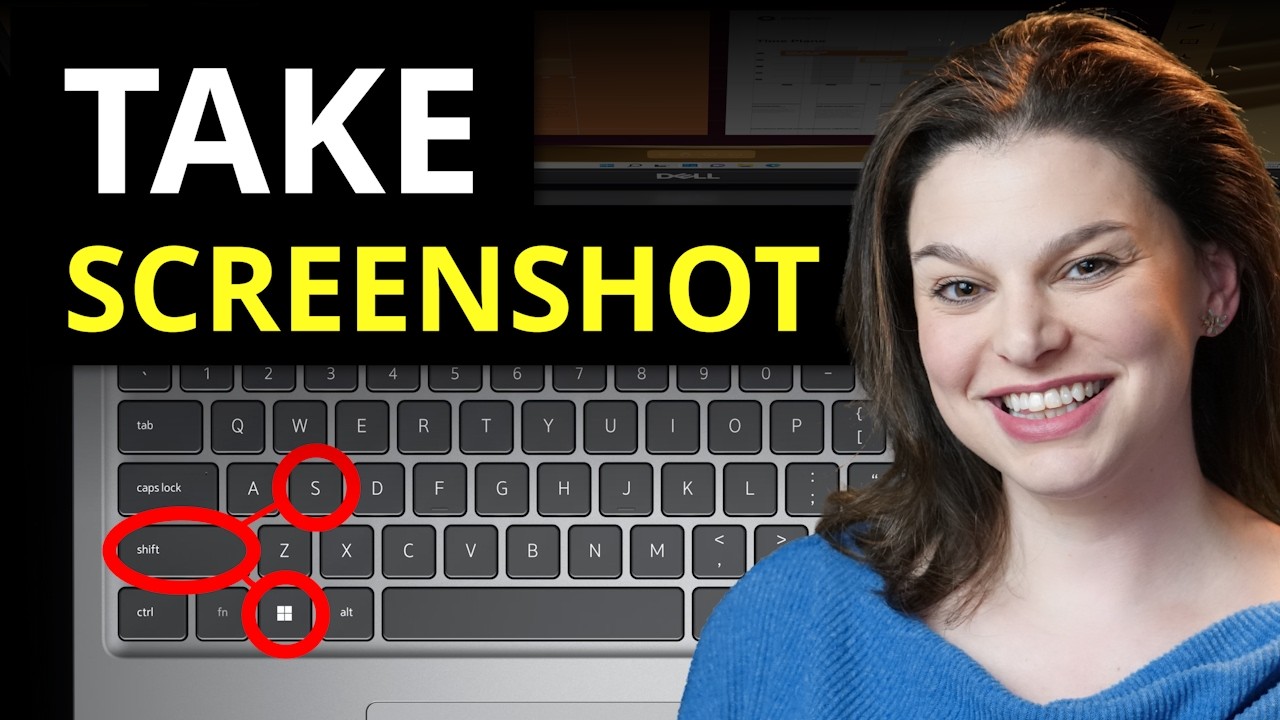
4. Windows + Shift + S (Best Method)
This is the fastest and most powerful shortcut.
Shortcut:
- Press Windows + Shift + S
What happens:
- Screen dims
- You choose what to capture
Options include:
- Rectangular snip
- Freeform snip
- Window snip
- Full screen
Screenshot goes to clipboard instantly
5. Capture Active Window Only
Shortcut:
- Press Alt + PrtScn
What happens:
- Captures only the active window
- Saves to clipboard
Which Method Should You Use?
- Quick copy → PrtScn
- Auto-save → Windows + PrtScn
- Precision → Snipping Tool
- Best overall → Windows + Shift + S
Common Mistakes
- Pressing PrtScn and expecting a file (it only copies)
- Not knowing where screenshots are saved
- Ignoring the faster shortcut (Windows + Shift + S)
If you want the cleanest workflow, just remember this:
Use Windows + Shift + S — it’s the MVP shortcut.
About the Author